Regular disk cleanup is a must for your Windows system to run smoothly and nicely. So here our topic of discussion is the same i.e. how to schedule a basic Disk Cleanup task to ease up or automate the process of disk cleaning.
You must be delighted to know that Windows includes some handy tools to help keep your machine operating smoothly. Disk Cleanup is one such tool that removes temporary and old, freeing up enough hard drive space for further allocation.
It’s suggested that set it up to run weekly or monthly depending on what works best for you. To schedule Disk Cleanup to run on a regular basis, first of all we need to schedule a task. For this follow the given below steps:
* Click on the Start Menu and enter task scheduler into the search box and hit Enter.
* The Task Scheduler opens and you’ll want to click on Action then select Create Basic Task.
* The ‘Create Basic Task’ Wizard comes up and from here type in a name for the task and a description then click Next.
* Now select how often you want Disk Cleanup to run…Weekly, Daily, Monthly, One Time…etc. It’s completely up to you and you might want to try out some different schedules. Let’s go with weekly option in this article.
* Since we set it up to run weekly we need to schedule it when to start, how often it should reoccur, and which day of the week to run it.
* Next under Action select Start a program…
* In the Program/script field type in cleanmgr.exe , or you can hit browse and select Disk Cleanup which is in C:\Windows|system32\cleanmgr.exe
* Under Program/script you’ll see the path to Disk Cleanup as C:\Windows\system32\cleanmgr.exe
* Then you’re shown a summary of the scheduled task and if everything looks correct click on Finish.
* For this basic setting we scheduled it for a time when we know the computer will be in use. When it’s time for the Scheduled Task to occur it will pop up and you can run it by selecting the drive to clean up.
Showing posts with label Windows 7. Show all posts
Showing posts with label Windows 7. Show all posts
Tuesday, August 10, 2010

Tuesday, June 22, 2010
Helpful software for Windows 7
Software for Windows 7? Is that what you’re looking for? Well, it seems we can help you here.
Here are some software that can help you a lot, if you are a busy person. These programs can help you in your work: to save your precious time and even to do set tasks more effectively!
Handy Password manager
It is a great choice for active Internet users, who have lots of favourite websites and pages. Handy Password is a multifunctional bookmark and password manager for Windows 7. Now, if you have a lot of personal information (your logins, passwords) you don’t have to memorize it all. You can just letHandy Password do it for you. It will remember your info, and fill it automatically when needed. It also stores your data safe and generates strong unbreakable passwords. Also password manager can remember all your bookmarks with form fields to make your work in Internet quicker and more pleasant.
Dr. Web Antivirus
You just can’t be an Internet user without antivirus software. And Dr. Web is a reliable and good friend. It protects your computer from malicious software that can cause loss of important data or computer breakdown. You can run full inspection of your computer – Dr. Web will find the sleeping awake enemies and do them away with. It updates virus databases several times a day, and is able to do it as often as you want. Dr. Web will give you a strong and reliable protection without high system requirements and with great system operating speed.
E-mail Follow-Up
E-mail Follow Up sees the letters that were not answered. Moreover, it can send a template letter that informs about it. After you install the program, you’ll be able to set properties of getting an answer (when it should be received and which characteristics should the letter have to be recognized as an answer). Also it can remind you to answer important letters. With E-mail Follow-Up you’ll be able to manage your correspondence in a perfect way!
Weather Watcher Live
If you want to get most precise weather forecasts you need this program. It is a strong weather informer that can gather and generalize forecasts from a lot of meteorological stations that are situated around your city. Above seventy seven thousand settlements are in its database. The data are updated hourly, practically in real-time mode. The program is showing temperature, cloudiness level, wind strength and speed, atmosphere pressure. What’s more – it informs you about forecoming weather degradation. You can get a short- or a long-range (up to ten days) forecast.
Leader Task
A present-day man needs a powerful instrument to organize his time. Leader task can be such an instrument. It can become you devoted friend and your indispensable assistant. It will organize your day, week, month tasks so that you have more spare time and see sequence of your actions absolutely clear. It will take all the routine for itself and leave you precious time for creativity. Besides, Leader Task is a handy Project Manager. With its help you can rule out any mess in your personal activities as well as business. Leader Task will automatically set you to-do list for a day according to your goals, plans and priorities. You need it for effective managing of your time.
Here are some software that can help you a lot, if you are a busy person. These programs can help you in your work: to save your precious time and even to do set tasks more effectively!
Handy Password manager
It is a great choice for active Internet users, who have lots of favourite websites and pages. Handy Password is a multifunctional bookmark and password manager for Windows 7. Now, if you have a lot of personal information (your logins, passwords) you don’t have to memorize it all. You can just letHandy Password do it for you. It will remember your info, and fill it automatically when needed. It also stores your data safe and generates strong unbreakable passwords. Also password manager can remember all your bookmarks with form fields to make your work in Internet quicker and more pleasant.
Dr. Web Antivirus
You just can’t be an Internet user without antivirus software. And Dr. Web is a reliable and good friend. It protects your computer from malicious software that can cause loss of important data or computer breakdown. You can run full inspection of your computer – Dr. Web will find the sleeping awake enemies and do them away with. It updates virus databases several times a day, and is able to do it as often as you want. Dr. Web will give you a strong and reliable protection without high system requirements and with great system operating speed.
E-mail Follow-Up
E-mail Follow Up sees the letters that were not answered. Moreover, it can send a template letter that informs about it. After you install the program, you’ll be able to set properties of getting an answer (when it should be received and which characteristics should the letter have to be recognized as an answer). Also it can remind you to answer important letters. With E-mail Follow-Up you’ll be able to manage your correspondence in a perfect way!
Weather Watcher Live
If you want to get most precise weather forecasts you need this program. It is a strong weather informer that can gather and generalize forecasts from a lot of meteorological stations that are situated around your city. Above seventy seven thousand settlements are in its database. The data are updated hourly, practically in real-time mode. The program is showing temperature, cloudiness level, wind strength and speed, atmosphere pressure. What’s more – it informs you about forecoming weather degradation. You can get a short- or a long-range (up to ten days) forecast.
Leader Task
A present-day man needs a powerful instrument to organize his time. Leader task can be such an instrument. It can become you devoted friend and your indispensable assistant. It will organize your day, week, month tasks so that you have more spare time and see sequence of your actions absolutely clear. It will take all the routine for itself and leave you precious time for creativity. Besides, Leader Task is a handy Project Manager. With its help you can rule out any mess in your personal activities as well as business. Leader Task will automatically set you to-do list for a day according to your goals, plans and priorities. You need it for effective managing of your time.
Thursday, March 11, 2010
How to Get Windows 7?
It could be difficult for you to choose, whether migrate to Windows 7 or continue with existing operating system. And yet, as is often the case, the choice is not as easy as it looks because once you plan to switch to Windows 7, you will also have to determine the best place to get Windows 7 & an edition that will suit your needs.
Windows 7 Editions
There are six editions of Windows 7 available in the market – Starter, Home Basic, Home Premium, Professional, Enterprise, and Ultimate. Now choosing the appropriate edition out of these six may be a huge task but in reality, you’ll have only three Windows 7 editions to choose from. So your choice is therefore simplified to the left three editions: Windows 7 Home Premium, Professional and Ultimate.
The numerous versions of Windows 7 are built such that each edition has all the functionalities of the previous editions plus other extra features, which make that edition unique. Also, you can use the Anytime Upgrade tool to buy a product key online and upgrade your existing Windows 7 license to a better edition. For example, if you wish to buy Windows 7 Home Premium, you can use Anytime Upgrade and move to Windows 7 Professional or Ultimate version anytime.
In my opinion, if you use your system mostly at home and for entertainment purpose, Windows 7 Home Premium is a great option. Or if you plan to run it on your office PC, Windows 7 Professional is a good choice. If you want a complete package, buy Windows 7 Ultimate.
How to Get Windows 7?
If you’re planning to get Windows 7 for your own PC, I would recommend you order or download it today from Microsoft official website: http://www.microsoft.com/windows/windows-7/faq.aspx. When you buy Windows 7, you will have two options for instance, the upgrade and full version. Both comprise the same features. If you have Windows XP or Windows Vista running your PC, go for the upgrade version. If you don't, you'll need to get the full version.
Wednesday, March 10, 2010
Experimenting Series of Microsoft Operating System - Windows 7 Professional
Features
After experimenting with a series of operating system form Microsoft and others, I have concluded that there is no alternative for Windows 7 Professional in the present date. Once, I had installed it I took a sigh of relief as it is much stable and user-friendly and miles away from software conflictions. I am pretty much sure that its features, like JumpList, Aero, HomeGroup, Domain Join and XP Mode are enough to challenge any OS.
Usability
Windows 7 Professional has simplified my task. Now, I can easily connect my PCs at home to share files, music, video and even my printer without any hassle. Earlier, it was never possible without help of technicians. In addition, I can maintain my privacy too with the password protection feature. I don’t face difficulty while working with multiple Windows because Aero Shake minimizes unessential applications within an eye blink by just shaking them with the mouse. I can access file located in remote section of my computer network easily and quickly with smart search of Windows Search option. When I just enter an alphabet in the search box, it gives a list of relevant files. It was never so easy with Windows Vista’s “Instant Search.” With the Tab Group feature in Internet Explorer you can easily manage multiple tabs, which was not possible in earlier versions of IE. Hence, it’s a totally a never-before experience with Windows 7 Professional.
Limitation
Although, I have a good experience with Windows 7 Professional, but I think Microsoft should have been a bit liberal with the users on the compatibility front. I faced issues while doing custom install on one of my old computer. It showed software conflicts a number of times, when I had to do install device drivers.
Conclusion:
Above and all, Windows 7 professional is a good presentation from Microsoft. There are some new features, which will be soon adaptable for me. I liked it mostly on account of its enhanced performance with least of software conflicts and strong security features, which were tough challenge in earlier versions.
After experimenting with a series of operating system form Microsoft and others, I have concluded that there is no alternative for Windows 7 Professional in the present date. Once, I had installed it I took a sigh of relief as it is much stable and user-friendly and miles away from software conflictions. I am pretty much sure that its features, like JumpList, Aero, HomeGroup, Domain Join and XP Mode are enough to challenge any OS.
Usability
Windows 7 Professional has simplified my task. Now, I can easily connect my PCs at home to share files, music, video and even my printer without any hassle. Earlier, it was never possible without help of technicians. In addition, I can maintain my privacy too with the password protection feature. I don’t face difficulty while working with multiple Windows because Aero Shake minimizes unessential applications within an eye blink by just shaking them with the mouse. I can access file located in remote section of my computer network easily and quickly with smart search of Windows Search option. When I just enter an alphabet in the search box, it gives a list of relevant files. It was never so easy with Windows Vista’s “Instant Search.” With the Tab Group feature in Internet Explorer you can easily manage multiple tabs, which was not possible in earlier versions of IE. Hence, it’s a totally a never-before experience with Windows 7 Professional.
Limitation
Although, I have a good experience with Windows 7 Professional, but I think Microsoft should have been a bit liberal with the users on the compatibility front. I faced issues while doing custom install on one of my old computer. It showed software conflicts a number of times, when I had to do install device drivers.
Conclusion:
Above and all, Windows 7 professional is a good presentation from Microsoft. There are some new features, which will be soon adaptable for me. I liked it mostly on account of its enhanced performance with least of software conflicts and strong security features, which were tough challenge in earlier versions.
Monday, December 21, 2009
How To Access Windows 7 Jump List?
 Another new feature that Windows 7 introduces is Jump Lists. They allow you to quickly access files and shortcuts to documents, webpages etc. before you even open the program.
A Jump List allows the user with immediate access to recently used files: Each item listed in Recent is an actual shortcut to that file or document. So you can quickly retrieve a file or document, click on it and the program opens the file. Thats it.
A Taskbar Jump List is composed of three sections. From the top – Pinned, Recent files and Commands. Pinned is a very useful feature as it allows you to pin an important file or files to the Jump List. They stay there as a permanent access point or shortcut to the file. This is handy if you require a file always available.
In Windows 7 Jump List is available on the Taskbar and on the Start menu.
Jump List comes with all Windows 7 Version. When you open an application, its icon appears on the Taskbar. You can also pin program icons to the Taskbar in Windows 7.
Two manifestations are included in the new Jump List -as part of the traditional Start Menu, and as a popup menu from the application’s taskbar button.
The appearance of Jump Lists on the Start menu is a little different than those on the Taskbar, although they provide the same functionality.
The feature can by default contain the application’s shortcut, the ability to toggle pinning, the ability to close one or all windows, access to specific tasks related with the application, and once you start using the application, a list of recent documents or destinations depending on the application.
Windows 7 does not have a Quick Launch bar, with the Taskbar itself serving as a platform to both launch applications as well as access running tasks. Internet Explorer is by default pinned to the Taskbar and has a Jump List.
The Jump List pops up when you right-click on the Internet Explorer icon. It displays two sections, which are termed the Tasks section and the Destinations section. The later includes the History category, while the Tasks section has the Taskbar tasks, which enables a user to launch Internet Explorer and remove the application icon from the Taskbar.
Jump List offers several advantages such as to launch a file or access a task you don’t require to start a program and additionally it doesn’t occupy much space on the taskbar and is automatically organized. The user can have access to many destinations without the need to customize to the UI. The Jump List can show the lot of text for each of its items.
You can simply pin to the list, just by keeping the require destination around. By default, the menu contains the program’s shortcut, the ability to toggle pinning and the ability to close Windows. The programs could easily replace the default MRU (Most Recently Used) list with a system-maintained MFU (Most Frequently Used) list. Custom destination list can also be easily provided by the programs. It has many customizable parts that are different across different applications.
you can access jump lists by right clicking on a programs icon in the task bar and this would pop up the jump list.
Tuesday, December 1, 2009
Microsoft Windows 7
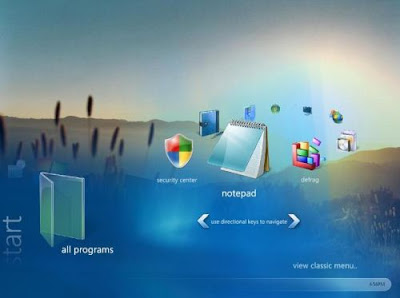
Microsoft Windows 7 is the recently launched version of Windows. Windows is referred to a series of OS produced by Microsoft for use in pc, home and business desktops, netbooks, ipones, tablet PCs, laptops and media center PCs. The manufacturing of Windows 7 was released on July 22, 2009. Three months after that i.e. on 22nd Oct 2009, the general retail availability of Windows 7 was released. Windows 7 was released in less than 3 years after the release date of its predecessor, Windows Vista. Windows Server 2008 R2 which is a Windows 7’s server counterpart was released around the same time as Windows 7
On 27th December 2008 the beta version of Microsoft Windows 7 was leaked in the Internet via BitTorrent followed by which the official release of Windows 7 beta was on 9th January 2009. Windows 7 beta beat both Windows XP and Vista in terms of performance in major key areas. It performed better in areas including boot time, shutdown time, working with files and loading documents. Microsoft initially planned to release Windows 7 beta to initial 2.5 million users. The beta version of Microsoft Windows 7 expired on August 1, 2009.
After the failure of Windows Vista which introduced a large number of new features, Microsoft mainly concentrated on a more focused and incremental update on Windows line. Windows 7 was aimed of being fully compatible with Windows Vista’s applications and hardware. However, people using Windows XP need to do a clean installation. According to a presentation given by Microsoft in 2008, they mainly focused on improving various features which includes multi-touch support, new taskbar aka superbar, redesigned Windows shell, a home networking system called as HomeGroup and performance improvements. Some of the features like Windows calendar, Windows Mail and Windows Movie Maker are not included in Microsoft Windows 7.
Wednesday, November 25, 2009
Microsoft Windows 7 faults
Microsoft has launched security advisories on two efforts that affect its newest operating system, Windows 7. One defect could let hackers carry out code remotely, the other could let them send a system into a crash spiral. The tapped code has been published on the Web. No fixes controlled in Microsoft’s latest Patch, which was issued less than a week ago, aimed at new Windows 7. Windows 7, which was publicly launched on Oct. 22, has been hit by at least two security defects.

One of these lets hackers run code remotely the other lets them activate an infinite loop remotely, causing a kernel crash. SMB, or Server Message Block, is a Microsoft file-sharing protocol used in Windows. It is mostly used with the NetBIOS transport protocol over TCP/IP. SMBv2 is a major rewrite of the SMB protocol, using different packet formats from SMBv1 and adding many improvements. Microsoft posted Security Advisory 977544 on Nov. 13, which stated the firm is investigating reports of a possible denial of service fault in the SMB protocol. The vulnerability affects Windows 7 executing on 32-bit and x64-based systems, and Windows Server 2008 R2 running on x64-based and Intel Itanium-based systems. The vulnerability may be used through Web transactions using any browser, the security advisory stated.
However, hackers cannot use the vulnerability to take control of or install malicious software on a user’s system, the advisory noted. Microsoft is growing a security update to address this vulnerability, although it rejected comment on how critical this defect is. This effort is more of a nuisance than anything else. It involves tricking an end user to click on a link to a server with a poisonous configuration, and it only locks up one machine. An assaulter who goes through the trouble of tricking users to click on a link will use an exploit that permits him to control the target machine after execution.
Someone also pointed to a National Vulnerability Database listing of a tap in the kernel that permits remote SMB servers cause a denial of service in computers executing Windows Server 2008 R2 and Windows 7. This attack comes through an SMBv1 or SMBv2 port containing a NetBIOS header with an incorrect length value, the listing stated. The kernel fault is under review for inclusion in the Common Vulnerabilities and Exposure (CVE) section of the National Vulnerability Database.
It was detected that both defects while working on other issues with Microsoft and other vendors, launched the information to make sure Microsoft admits security issues and patch the flaws as soon as possible and with transparency. This bug can be activated from outside a user’s local area network by hackers using Internet Explorer. The bug is so noob, it should have been spotted two years ago by the SDL if the SDL had ever existed.
SDL is the Security Development Lifecycle, it is part of Microsoft’s Trustworthy Computing Initiative. The SDL is useful, and gives more secure software to users, but in this case it failed, as Microsoft likely centred way too much on Internet Explorer and the Office suite, and critical services execute with kernel privileges such as SMB are not well covered by this process. Software development is a process, it’s impossible to completely avoid all exposures while software development. Microsoft’s SDL process is specified to lower the number of vulnerabilities in software as well as reduce the severity and affect of the ones that occur.
Monday, November 23, 2009
Why Prefer Windows 7 Over Vista
Many of my relatives and friends completely denied to make the switch to Windows Vista when it was released. Some who purchased new machines with Vista installed immediately downgraded the OS. A few said that they would give up XP only when you pried it from their cold, dead hands. But even in the last category, many of them are impressed with what they’ve seen in the Windows 7.

Reasons why to choose windows 7 over windows vista
While some tech professionals are saying Windows 7 isn’t really all that different from Vista and indeed, one of the plus point for Vista users is that Windows 7 can generally use the same drivers and run the same applications as Vista.
Microsoft redesigned the UAC in Windows 7. Most of the people feel this on-going effort has been successful.
Microsoft has reduced the actions that prompt you making it less annoying for the users. The software giant has made several changes, but the biggest change is the User Account Control “slider” setting which results in less annoyance and more security.
User Account Control safeguards your computer against hackers and protects it against malicious software. The tool prompts the user for the permission, if any application wants to make any changes to your computer. UAC is more flexible in Windows 7 than in Windows Vista. Now, every task doesn’t require your consent in Windows 7, and if you have administrator privileges, you can easily fine tune to UAC’s notification settings from the control panel.
Vista made the left navigation pane in Windows Explorer a constantly moving target. As you navigate your mouse, it will automatically scroll back and forth.
You can avoid the auto-scrolling by dragging the pane to make it wide enough to accommodate the entire tree.In Windows 7, the navigation pane stays still, so you no longer risk getting seasick from all the swaying back and forth.
In Windows XP, you could use pretty much whatever graphics cards you wanted for multiple monitors. According to reports, that to use multiple graphics cards, you would have to all use the same driver. That meant I couldn’t use cards from different vendors together. I had to shell out a few bucks to get more ATI cards before I could use all my monitors again.
According to reports, Windows 7 has added support for multiple heterogeneous graphics cards from different vendors. Now this probably doesn’t mean you can combine ATI and NVIDIA cards in an SLI-configuration, but it sounds as if we can have our multi-vendor multi-monitor setups back.
Another common issue about Vista has been the inordinate amount of time it can take to boot up. This might not be a problem for those who leave their systems on all the time, but if you shut down your system every night, waiting around forever for it to get started in the morning can turn into a major annoyance.
A Microsoft official indicated that the company’s goal for Windows 7 is a 15-second boot time, whereas three quarters of Vista users report boot times of more than 30 seconds.
Monday, October 19, 2009
Burn all Media Disc by just Dragging and Dropping with Power2Go
Just drag and drop and burn the data on to the disc on your PC with Windows 7.
CyberLink Power2Go, helps you to burn, organize and bacup all your videos, music and data with more comfort and convenience.
Some of the features of Power2Go are as follows.Simplified searching and burning process.Support for burning any kind of data on any kind of disc.Provides protection to your data.Newer and more user friendly interface.Drag and burn contents in a single step.Control burning settings.Extract audio tracks from video files.DVD folders can be burnt to Disks.Erases disks with unwanted content.Supports advanced tracking and Navigation.
Is Power2Go compatible with Windows 7 PC ? How to burn a Data Disc using Power2Go ?
Yes, CyberLink Power2Go is compatibile with a system with Windows 7 operating system.The Power2Go 6.0, version of CyberLink Power2Go product is compatible with Windows 7 PC.Data disc is allows to burn Data files, which includes images and any other document files.
The following steps should be followed to burn a data disc :
Click on Data Disk icon and select the type of disk that you want to create in the Select a burning task window..Select the files you want to include on your disk using the search pane.Drag the selected files or folders you want to burn to the destination disk or you can click on the add buttons.After all the content that you want to burn have been added , click on Burn Now.Click on Burn, when you are ready to burn your disk, the burn process will be started.When burning process is complete, you need to select an option in the dialog box that will open the View Log to view the burning log,To exit from the program click on OK and then Exit.In this way a Data Disc will be prepared.
The minimum system requirements to install Power2Go are as follows.
1.Display with a screen resolution of 1024*768 pixels.
2.128 MB of static RAM for brning data and music contents.And 256 MB of DDRRAM for video.
3.Intel Pentium II 50 and Intel Pentium III 800 MHz for CD/DVD and DVD production.
4.1GB of Hard Disk Space for VCDs and 5GB and above for DVDs.
To burn a Bootable Data Disk follow these steps:
1.Click on Data Disk icon and select the type of disk that you want to create in the Select a burning task window.
2.Click on the configuartion button, whose window opens to a Data tab.
3.Select Make this disk bootable option.
4.Select the Use a bootable image file option and then click on Browse to locate the bootable disk partition or select the Use a Bootable floppy disc option in which you need to insert a floppy disk into the floppy disc drive after clicking on Burn.
5.Click Ok.
6.When all the content have been added click on Burn Now.
7.Click on Burn, when you are ready to burn your disk, the burn process will be started.
8.When burning process is complete, you need to select an option in the dialog box that will open the View Log to view the burning log,
9.To exit from the program click on OK and then Exit.
In this way a Bootable Data Disc will be prepared using Windows 7 operating system.
CyberLink Power2Go, helps you to burn, organize and bacup all your videos, music and data with more comfort and convenience.
Some of the features of Power2Go are as follows.Simplified searching and burning process.Support for burning any kind of data on any kind of disc.Provides protection to your data.Newer and more user friendly interface.Drag and burn contents in a single step.Control burning settings.Extract audio tracks from video files.DVD folders can be burnt to Disks.Erases disks with unwanted content.Supports advanced tracking and Navigation.
Is Power2Go compatible with Windows 7 PC ? How to burn a Data Disc using Power2Go ?
Yes, CyberLink Power2Go is compatibile with a system with Windows 7 operating system.The Power2Go 6.0, version of CyberLink Power2Go product is compatible with Windows 7 PC.Data disc is allows to burn Data files, which includes images and any other document files.
The following steps should be followed to burn a data disc :
Click on Data Disk icon and select the type of disk that you want to create in the Select a burning task window..Select the files you want to include on your disk using the search pane.Drag the selected files or folders you want to burn to the destination disk or you can click on the add buttons.After all the content that you want to burn have been added , click on Burn Now.Click on Burn, when you are ready to burn your disk, the burn process will be started.When burning process is complete, you need to select an option in the dialog box that will open the View Log to view the burning log,To exit from the program click on OK and then Exit.In this way a Data Disc will be prepared.
The minimum system requirements to install Power2Go are as follows.
1.Display with a screen resolution of 1024*768 pixels.
2.128 MB of static RAM for brning data and music contents.And 256 MB of DDRRAM for video.
3.Intel Pentium II 50 and Intel Pentium III 800 MHz for CD/DVD and DVD production.
4.1GB of Hard Disk Space for VCDs and 5GB and above for DVDs.
To burn a Bootable Data Disk follow these steps:
1.Click on Data Disk icon and select the type of disk that you want to create in the Select a burning task window.
2.Click on the configuartion button, whose window opens to a Data tab.
3.Select Make this disk bootable option.
4.Select the Use a bootable image file option and then click on Browse to locate the bootable disk partition or select the Use a Bootable floppy disc option in which you need to insert a floppy disk into the floppy disc drive after clicking on Burn.
5.Click Ok.
6.When all the content have been added click on Burn Now.
7.Click on Burn, when you are ready to burn your disk, the burn process will be started.
8.When burning process is complete, you need to select an option in the dialog box that will open the View Log to view the burning log,
9.To exit from the program click on OK and then Exit.
In this way a Bootable Data Disc will be prepared using Windows 7 operating system.
What is an update on the place and I do so?
Windows 7 upgraderequires replacing your existing installation of Windows Vista, making what is known as "instead of update". The installation process replaces Windows Vista keeps files and installed applications, files and personal settings. Of course, this requires careful analysis and planning.
1. Check to make sure that all installed applications and existing hardware devices are compatible.
2. Acquiring the required updates that you may be needed before upgrading to ensure their applications and hardware devices working after you install Windows 7.
3. Ensure that there is enough disk space for temporary files and operating system as well as their applications and files.
4. Enough memory to efficiently run the operating system and applications.
5. Processor speed acceptable.
If you meet the above criteria, you should not have a problem.
1. Check to make sure that all installed applications and existing hardware devices are compatible.
2. Acquiring the required updates that you may be needed before upgrading to ensure their applications and hardware devices working after you install Windows 7.
3. Ensure that there is enough disk space for temporary files and operating system as well as their applications and files.
4. Enough memory to efficiently run the operating system and applications.
5. Processor speed acceptable.
If you meet the above criteria, you should not have a problem.
Wednesday, September 16, 2009
Adopt Windows 7 now, says Microsoft
Mumbai: Despite the consumer release of Windows 7, Microsoft is scheduled for Oct. 22, the giant cannot wait until that date and now sells the idea of using Windows 7 for business.
Since access to the implementation of already existing Windows 7, Microsoft set out in Blog Business, "There is no need to wait to start deploying Windows 7 already!"
"The implementations are happening right now and your business can begin deploying and! Several of our early adopters are already having great success with Windows 7 ... We are happy to see such enthusiasm for Windows 7 early adopters, showing the real value Windows 7 provides businesses ... Now is the time to begin testing and deploying MDOP and Windows 7 with Windows Server 2008 R2! "
Microsoft hit the lines of the blog post transport companies to quickly update themselves to Windows 7, citing the Total Cost of Ownership.
He said enterprise deployments of customers: 2,200 users at Baker Tilly (Professional Services - UK), 2235 users of the City of Miami (Local Government - United States), and 14,300 users Getronics (IT Services - Countries Netherlands) and users of the new Windows 7.
If your setup is similar to any of those, Microsoft wants you to check out the studies to see the savings that can be done by moving to Windows 7.
Since access to the implementation of already existing Windows 7, Microsoft set out in Blog Business, "There is no need to wait to start deploying Windows 7 already!"
"The implementations are happening right now and your business can begin deploying and! Several of our early adopters are already having great success with Windows 7 ... We are happy to see such enthusiasm for Windows 7 early adopters, showing the real value Windows 7 provides businesses ... Now is the time to begin testing and deploying MDOP and Windows 7 with Windows Server 2008 R2! "
Microsoft hit the lines of the blog post transport companies to quickly update themselves to Windows 7, citing the Total Cost of Ownership.
He said enterprise deployments of customers: 2,200 users at Baker Tilly (Professional Services - UK), 2235 users of the City of Miami (Local Government - United States), and 14,300 users Getronics (IT Services - Countries Netherlands) and users of the new Windows 7.
If your setup is similar to any of those, Microsoft wants you to check out the studies to see the savings that can be done by moving to Windows 7.
Monday, September 14, 2009
Windows 7 RTM Reviewed
Windows 7 is Vista done right, but you cannot deny that is based on the Microsoft operating system, at war. Despite improvements made in two service packages, users never had to Windows Vista.
Although Windows 7 Release Candidate is available for consumers to try the final version of Windows 7 aims to correct real and perceived flaws of its predecessor. The attraction of the new interface is undeniable, and should compete well against Apple's OS X, but even with modern features such as native support touch-screen Windows 7 is actually better XP? Read the full review and find out.
Although Windows 7 Release Candidate is available for consumers to try the final version of Windows 7 aims to correct real and perceived flaws of its predecessor. The attraction of the new interface is undeniable, and should compete well against Apple's OS X, but even with modern features such as native support touch-screen Windows 7 is actually better XP? Read the full review and find out.
Subscribe to:
Posts (Atom)


